1. Export an EDL marker file from DaVinci Resolve
- Select the sequence in your media tab.
- Make the right click on the sequence timeline in your media tab and it will open the popup.
- Navigate to: "Timeline > Export > Timeline Markers to EDL"
2. Use the "Marker-converter" to convert the EDL marker file into a CSV file
Open the free Marker-converter, select "DaVinci Resolve > Sequence (.edl)" and set "convert" to "CSV for Google Sheets". Generate and download the file. Heb je problemen bij het converteren van het bestand, dan kun je contact opnemen met de gratis support.
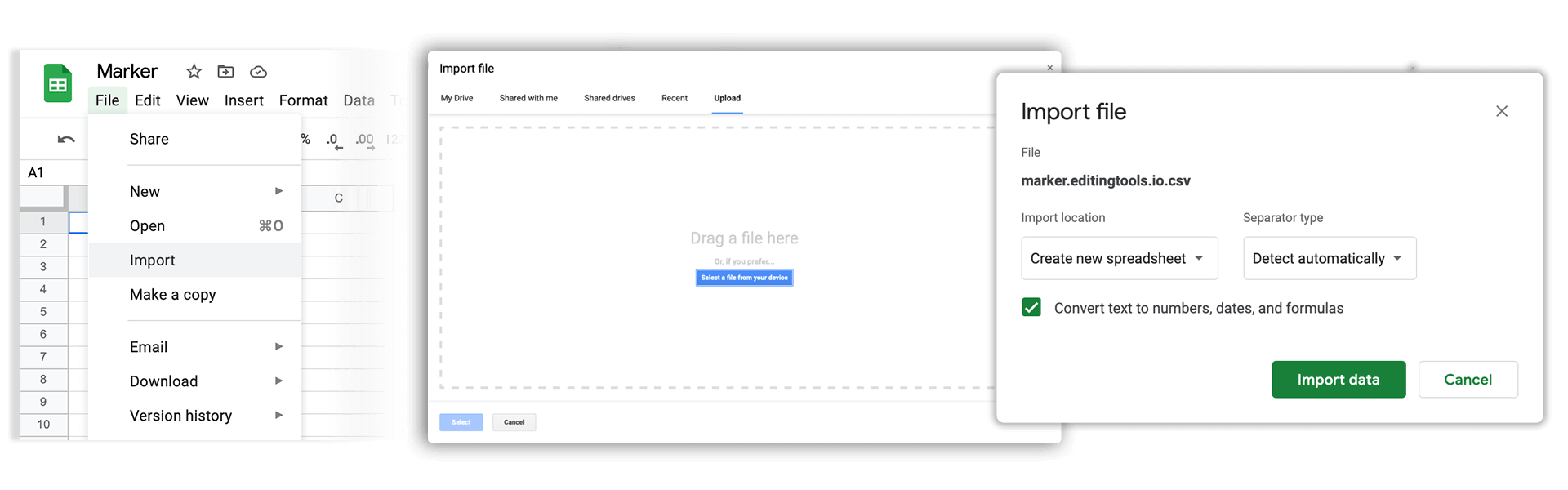
3. Import the CSV file into Google Sheets
Open Google Sheets and go to "File -> Import". Upload the generated CSV file and press "Import Data" to generate the Sheet with all markers.
🚀 Klaar
Dat was het voor nu! Vond je deze tutorial nuttig, deel hem dan om ons te steunen. Heb je suggesties om de workflow te verbeteren, laat het ons weten!