1. Export an Avid DS (Subcap) subtitle file from Live Timecode Notes app
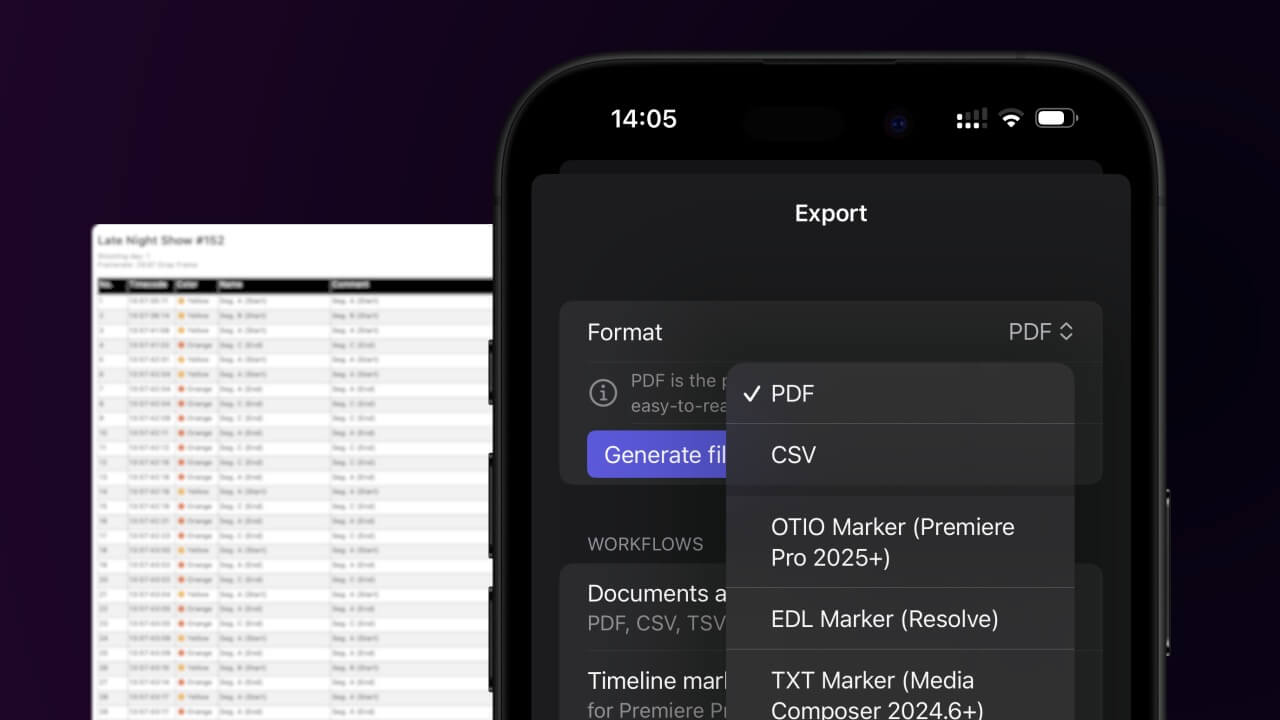
Open the project in the app, then select "Export Notes" from the top menu. Select "DS Caption File" and activate "Sort by Timecode". Generate and save the subtitle file.
2. Import the Avid DS (Subcap) subtitle file in Avid Media Composer
Open your video in Avid Media Composer and go to "Tools > Effect Palette > Generator > SubCap". Drag SubCap onto the video track in your timeline. Go to "Tools > Effect Editor > Caption Files > Import Caption Data" and select the SubCap file from your computer.
🚀 Klaar
Dat was het voor nu! Vond je deze tutorial nuttig, deel hem dan om ons te steunen. Heb je suggesties om de workflow te verbeteren, laat het ons weten!