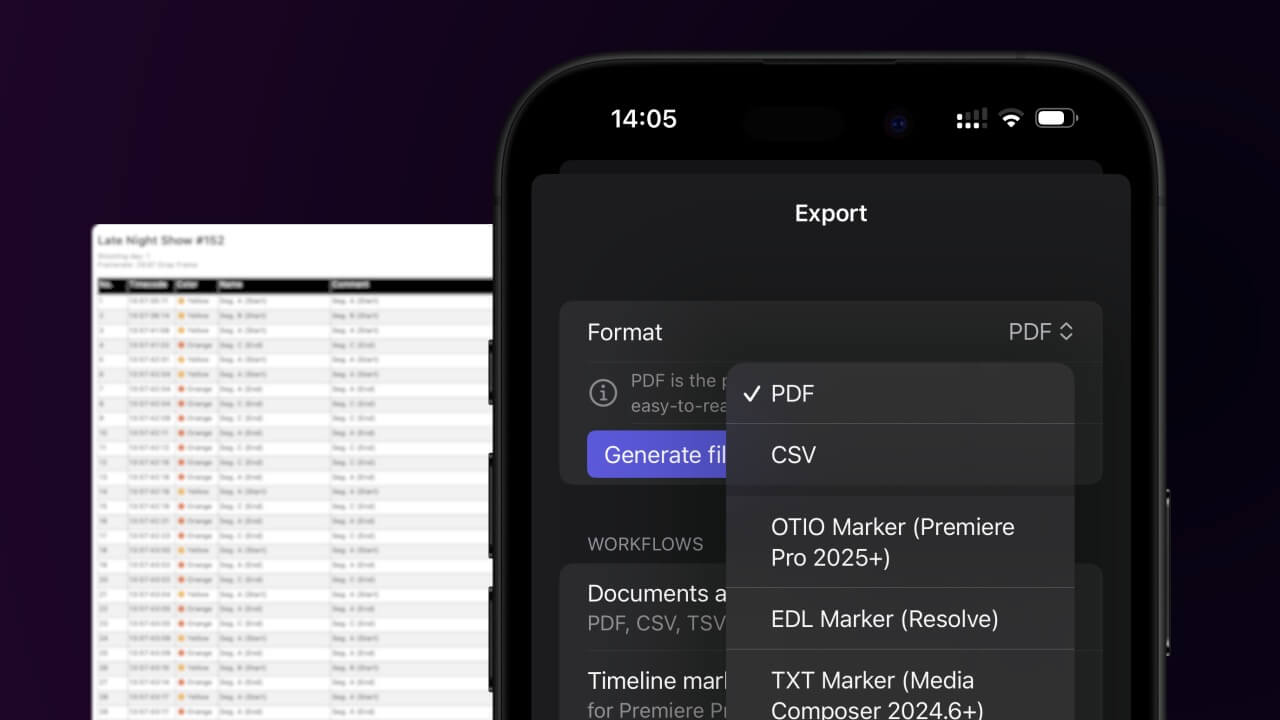
1. Export a CSV file from Live Timecode Notes app
Open the project in the app, then select "Export Notes" from the top menu. Select "CSV". Generate and save the file.
2. Use the "Marker-converter" to convert the CSV file into a YouTube Chapter Markers (.txt) file
Open the free Marker-converter, select "CSV" and set "convert" to "YouTube Chapter Markers (.txt)". Generate and download the file. Heb je problemen bij het converteren van het bestand, dan kun je contact opnemen met de gratis support.
Ensure that the CSV file contains columns labelled "Timecode In", "Name" and "Comment". Otherwise, it will not work. You can also add columns for 'Colour' and 'Timecode Out'.
3. Copy Chapter Markers into the video description
Open the generated .txt file. Copy and paste the newly generated markers into your video's description.
🚀 Klaar
Dat was het voor nu! Vond je deze tutorial nuttig, deel hem dan om ons te steunen. Heb je suggesties om de workflow te verbeteren, laat het ons weten!